Send invoices and get paid
The bill is made from what was actually installed on the job, so it matches the work, and every payment against it is recorded with who took it.
Steps
In the office
- Open the job on the Jobs tab. Under Bill, click + Raise.
- To add labour, a fee or a credit, click + line, choose Labor, Fee or Discount, and type what it is and the amount.
- Click Raise the invoice.
- Click the Billing tab. Unpaid bills are listed, the earliest due first. Click Open on the bill.
- Click Email to customer, add a line of your own if you like, and click Send.
- When money comes in, type the amount, choose Cash, Check, Bank transfer or Other, add the Reference for a check or transfer, and click Record payment.
On the phone
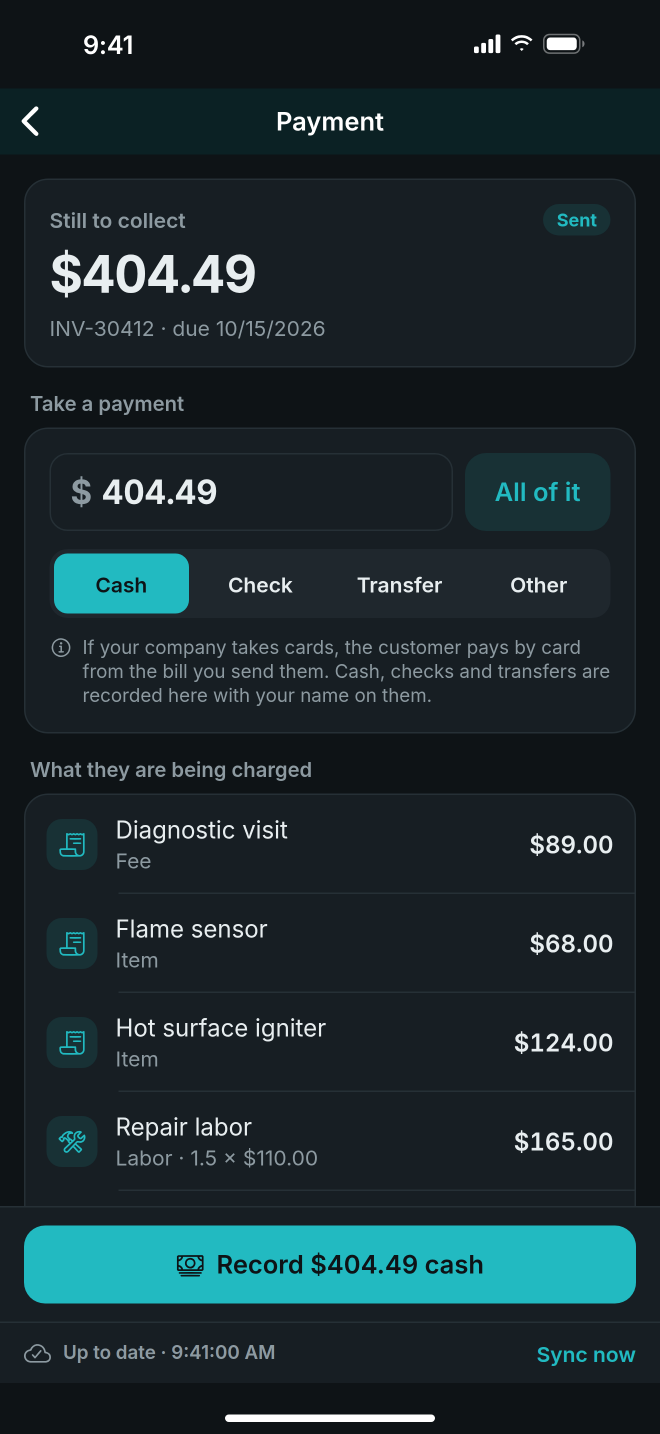
- On the job, tap Payment. The screen shows what is Still to collect.
- Type the amount, or tap All of it.
- Choose Cash, Check, Transfer or Other. For a check, type the Check number; for a transfer, the Reference.
- Tap the record button, for example Record $120.00 cash.
Good to know
- The lines come from the items installed and billable on the job, priced from those items. If nothing is installed yet, the bill cannot be raised and the screen says why.
- Owners and managers raise bills and record payments in the office.
- The phone never takes cards. If your company takes cards, the customer pays by card from the bill you send them.
- A payment taken offline is held on the phone and sent with the next connection. The phone takes it off what is still to collect, so you are not asked for it twice.
- If the office would not accept a payment, for example because the bill was already paid, it shows in red at the top of the Payment screen. Hand the money back or ask the office to refund it, then tap I have sorted this out.
- If the job has no bill yet, the phone says No bill for this job yet. The office raises it and it appears on the next sync.
- Mark sent records a bill you sent another way. Void cancels a bill and asks why.