Good, better and best estimates
Giving the customer a choice of options, each with its own price, lets them pick the level of work that suits them, with any extras they want on top.
Steps
In the office
- Open the job on the Jobs tab. Under Change orders, click + New.
- Give it a name and leave it as External — client agrees.
- Tick Offer options (good, better, best). Rename the options if you like, or use + option for up to four.
- Search the catalog and click each line to add it. For each line, choose Every option or the one option it belongs to.
- Tick optional extra on add-ons the customer can choose or leave out.
- Click the create button, for example Create CO-2. Then click Present to customer.
- To send it, click Email to customer, add a line of your own if you like, and click Send.
On the phone
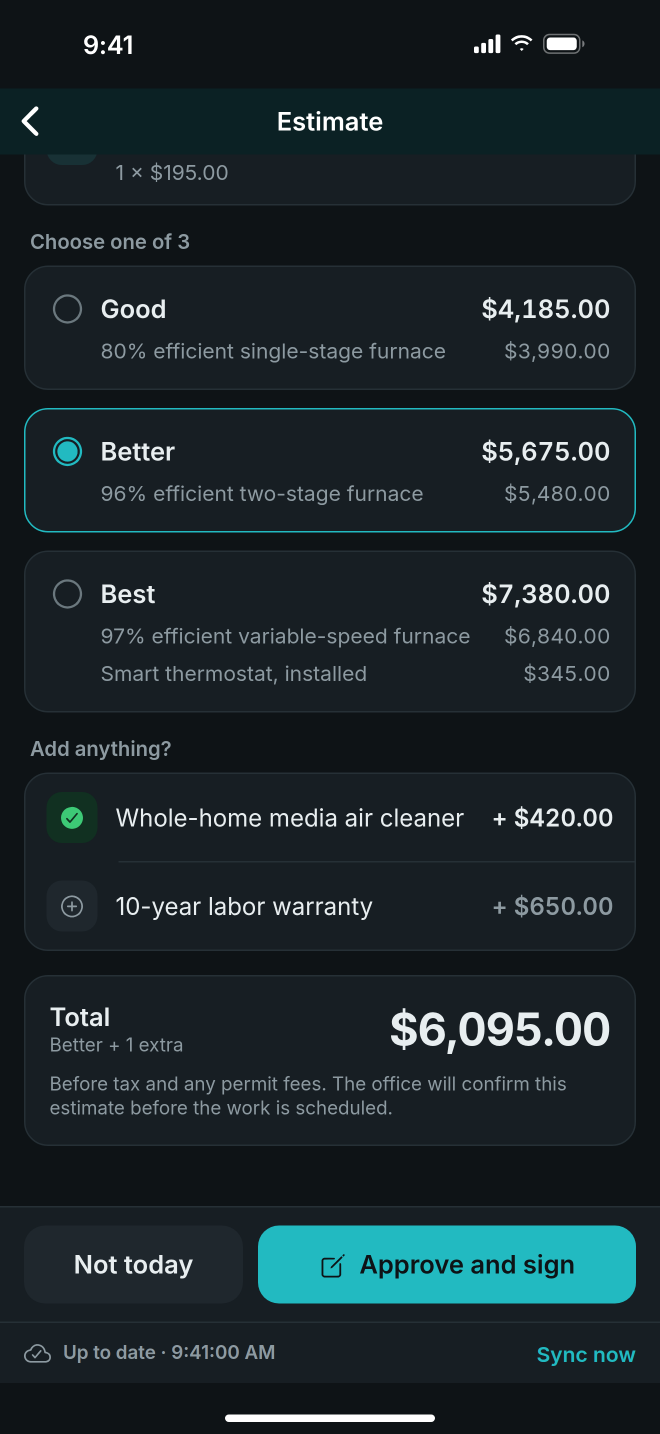
- On the job, tap Estimate. The office's estimate shows Ready to present. Tap it.
- Hand the phone to the customer. They tap one option under Choose one of 3, and tick anything they want under Add anything?
- They tap Approve and sign, sign, enter their name, and tap Approve the estimate. If they say no, tap Not today.
Good to know
- You need at least two options, each with its own name and something in it.
- The total changes as the customer picks. It is before tax and any permit fees.
- The customer can also answer on their own page: Read and answer, choose an option, tick extras, type their name, agree, and click Yes, go ahead.
- An answer given on the phone with no signal waits on the phone and is sent with the next connection.
- The office still decides whether the work goes on the job. Click Approve and add to job. If the customer told you their choice by phone, click it, choose their option and extras, and click Approve their choice and add to job.
- The chosen option is marked chosen on the change order.
- Technicians see office estimates only once they are presented.