Your day on the phone
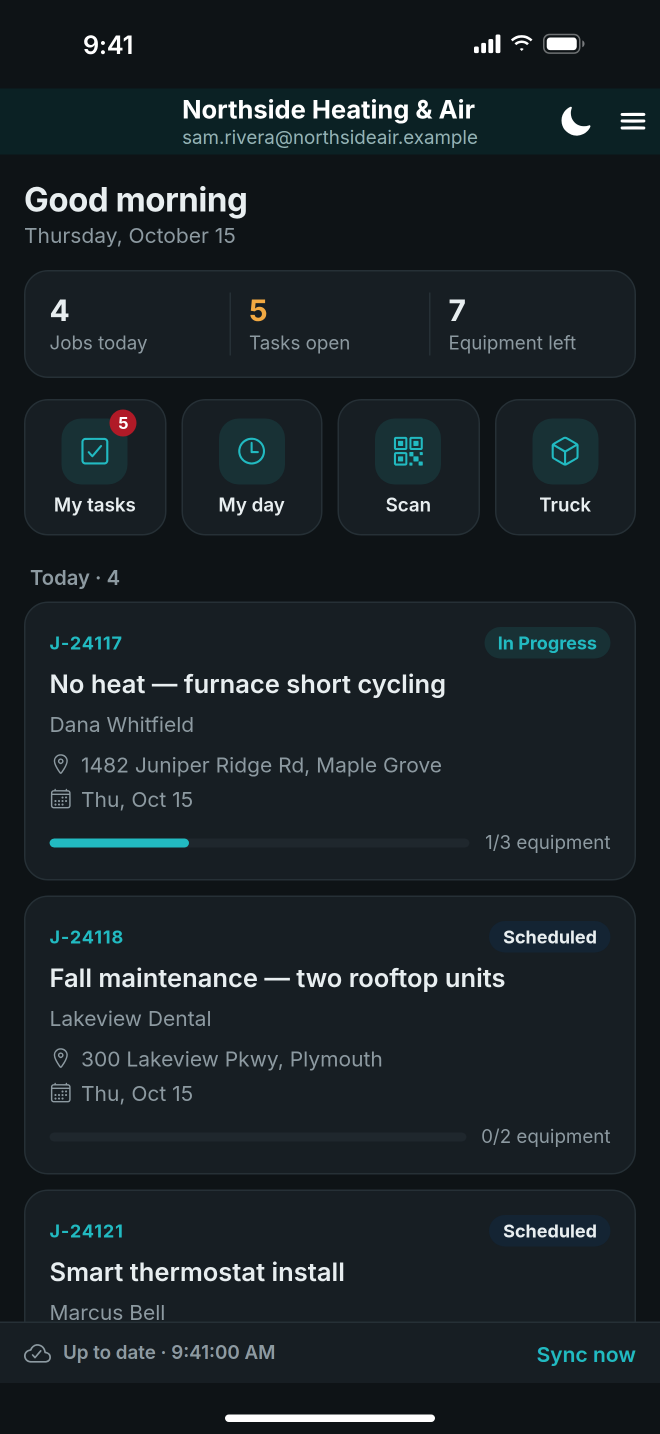
The jobs screen is where your day starts: the jobs assigned to you, today first, with everything you need for each visit one tap away.
Steps
- Open the app. The top shows Jobs today, Tasks open and Equipment left, then your jobs under Today, Coming up and Earlier.
- Tap a job to open it.
- Tap Directions beside the address. Your maps app opens with the route.
- Before you set off, tap On my way, then About 15 min or About 30 min. The customer gets an email saying you are coming.
- On site, tap Items under The work (your company may use another word). Tap an item, then mark it Installed, Not installed or Exception. Use Scan serial and Photo on the same item.
- To write something down, tap Note, type what you found, and tap Save note.
- When the work is done, tap Complete job at the bottom.
Good to know
- Everything on these screens is read from the phone, so your jobs open with no signal. A note you save offline shows Waiting to send until it reaches the office.
- On my way needs a signal, and goes once per job per day. If the customer was already told, the app says so.
- Not installed and Exception need a reason before the job can be completed.
- The tiles on the job also open Estimate, Payment, Expense, History and Chat.
- If the address is not on the map, the job shows Pin this address here. Tap it while standing at the building.
- My tasks, My day, Scan and Truck on the jobs screen are there all day, whichever job you are on.
- If a job you expect is missing, tap Sync now on the bar at the bottom.