Clock in and out, and automatic clock-in
Your hours come from the phone. You start and end the day yourself; the phone can switch you onto a job when you get there.
Steps
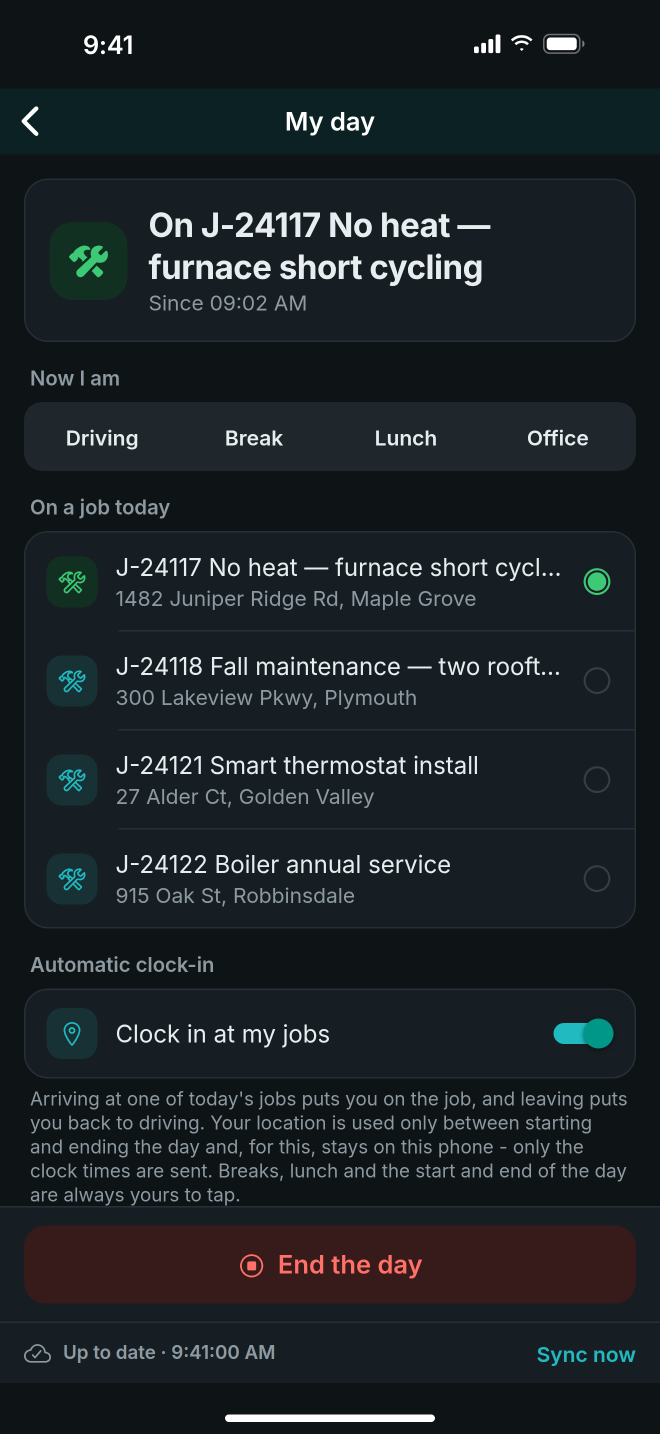
- On the home screen, the list of your jobs, tap My day.
- Tap Start the day when you set off.
- Under Now I am, tap what you are doing: Driving, Break, Lunch or Office.
- When you start work, tap the job under On a job today. The top of the screen says which job you are on.
- To have the phone do step 4 for you, turn on Clock in at my jobs under Automatic clock-in. Allow location "all the time" when the phone asks.
- At the end of your last job, tap End the day.
Good to know
- With Clock in at my jobs on, arriving at one of today's jobs puts you on the job, and leaving puts you back to driving. Breaks, lunch and the start and end of the day are always yours to tap.
- Your location is used only between Start the day and End the day. For automatic clock-in it stays on the phone; only the clock times are sent.
- Showing the office where you are is a separate choice, under Location sharing. It is off until you turn it on.
- No signal? Every tap is kept on the phone with the time it happened, and sent later. The screen says how many clock changes are waiting.
- If the office could not accept a clock change, it is listed under Not accepted - tell the office. Tell them, then tap Seen.
- Your week is on the web too: open Timesheets and use ← Previous and Next →. You see only your own hours. Corrections are made by an Admin or a Manager.
- Asking for time off is at the bottom of My day: fill in the days and tap Ask for time off. It needs a signal.