Install the app and sign in
The phone app holds your jobs, and keeps working when there is no signal.
Steps
- Install the app from the App Store. On your home screen it is called Field Service.
- Open it and sign in with the email your office invited. Any of these works:
- Tap Continue with Google, Continue with Apple or Continue with Microsoft.
- Type your Email and Password, then tap Sign in.
- No password? Tap Email me a code, type your Email, tap Email me a code, then type the Code from the email and tap Sign in with the code.
- If you see You have been invited, tap the Join button with your company's name on it.
- If you work for more than one company, choose one under Which company?. To change it later, sign out.
- If you are asked for a code from your authenticator app, type it and tap Continue.
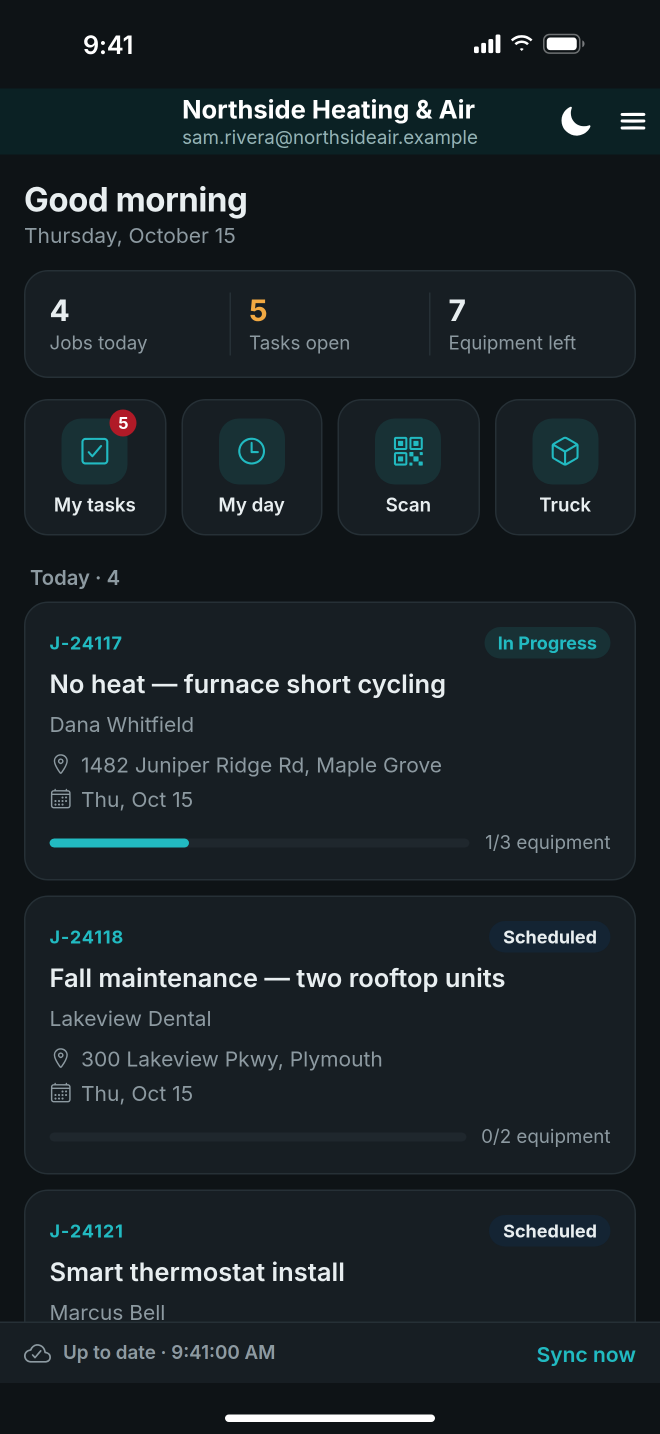
- Your jobs arrive in the first sync, under Today and Coming up.
- A short tour shows you round. Tap Next, or Skip the tour.
Good to know
- The first sign-in on a phone needs a connection, to find your company. After that the app works offline.
- No jobs yet means nothing is assigned to you yet. Tap Sync now on the bar at the bottom to check again.
- The app syncs when you open it, every minute while it is open, and when you come back to it.
- To see the tour again, tap the menu at the top, then Show me around.
- If your company signs in with Microsoft work accounts (Business and Enterprise), the app shows one Sign in button. Use your work account, and ask your office which app to install.
- Signing out with work still waiting warns you first: Not everything has reached the office.